Introduction
Dev-C++ is a free integrated development environment (IDE) for developing C/C++ programs. It is distributed under the GPL and uses MinGW and GDB as its compilation and debugging systems. Dev-C++ runs on Microsoft Windows.
Dev-C++ has a simple and friendly interface, is easy to install, and supports single-file compilation, so it has become the first choice for many beginner OI contestants and C++ beginners. In NOIP, provinces that provide Windows as the competition system generally preinstall Dev-C++.
Dev-C++ originated from Bloodshed Dev-C++, written by Colin Laplace. This version stopped being updated on February 22, 2005. In 2006, Colin Laplace, the main developer of Dev-C++, once explained this: "Because I was busy with matters in real life, I did not have time to continue developing Dev-C++."
Orwell Dev-C++ is a derivative version of Dev-C++, developed and maintained by the independent programmer Orwell (Johan Mes). It fixed bugs in the original Dev-C++ and updated the compiler version. Generally speaking, Dev-C++ 5.x refers to Orwell Dev-C++. Its last update was in 2015, version 5.11.
Embarcadero Dev-C++1 is the successor to Bloodshed Dev-C++ and Orwell Dev-C++. In 2020, Embarcadero sponsored and took over the original Dev-C++ project and continued its development. Embarcadero Dev-C++ added support for high DPI, updated the compiler to support newer versions of the C++ standard, and added dark mode.
The above Dev-C++ distributions are all considered "official". In addition, after Orwell Dev-C++ stopped being updated in 2015, an individual developer from China named royqh1979 decided, for teaching purposes, to continue developing his personal branch of Dev-C++, naming it Red Panda Dev-C++2. It integrates code completion and a newer version of MinGW64, making it very convenient for personal use and learning in China.
After the release of Red Panda Dev-C++ version 6.7.5, the author used qt5 to develop the brand-new Red Panda C++3, which can run natively on systems such as windows, linux, and macos. Red Panda C++ has an interface similar to Dev-C++. Besides providing more complete versions of functions similar to Dev-C++—such as single-file compilation, debugging, syntax highlighting, and search/replace—it also provides basic functions common in modern IDEs, such as dark themes, code completion, variable/function renaming, and switching/automatic detection of file encoding. In addition, Red Panda C++ has a problem-set feature similar to CP Editor: you can write problem sets yourself or download sample problems from common OJ contest websites, and automatically run and test programs.
User Guide
Common Shortcuts
Files
Ctrl + N: Create source codeCtrl + O: Open a fileCtrl + W: Close a fileCtrl + Shift + W: Close all filesCtrl + P: Print a file
Formatting
Ctrl + /: Comment and uncommentTab: IndentShift + Tab: Unindent
Line Operations
Ctrl + E: Duplicate a lineCtrl + D: Delete a lineCtrl + Shift + Up: Move upwardCtrl + Shift + Down: Move downward
Navigation
Ctrl + F: SearchCtrl + R: ReplaceF3: Find nextShift + F3: Find previousCtrl + G: Go to a specified line numberShift + Ctrl + G: Go to a specified functionCtrl + [1 ~ 9]: Set a bookmarkAlt + [1 ~ 9]: Jump to a bookmark
Display
Ctrl + 滚轮: Increase or decrease the font sizeCtrl + F11: Enter or exit full screen
Running
F9: Compile onlyF10: Run onlyF11: Compile and runF12: Recompile everything
Debugging
F2: Go to a breakpointF4: Set or remove a breakpointF5: Run under the debuggerF6: StopF7: Step through
Debugging Procedure
- Set the compiler configuration to
TDM-GCC 4.9.2 64-bit Debug. - Press
F4to set or remove a debugging breakpoint. - Place the cursor on a variable and press
Alt + Ato add the watched variable to the debugging window. - Press
F5to start debugging. - Press
F7orAlt + Nto step through the program. - Press
Alt + Sto jump to the next debugging breakpoint. - Press
F6to stop debugging.
Extensions
Adding Compilation Options
Click Tools -> Compiler Options, then select the "Code Generation/Optimization" tab. Several compilation options commonly used by the author are introduced below.
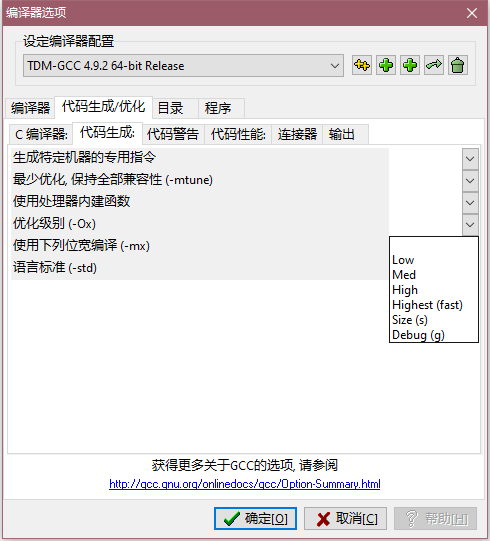
Enabling Optimization
Optimize code execution time or occupied space.
Select the "Optimization level (-Ox)" option under the "Code Generation" sub-tab.
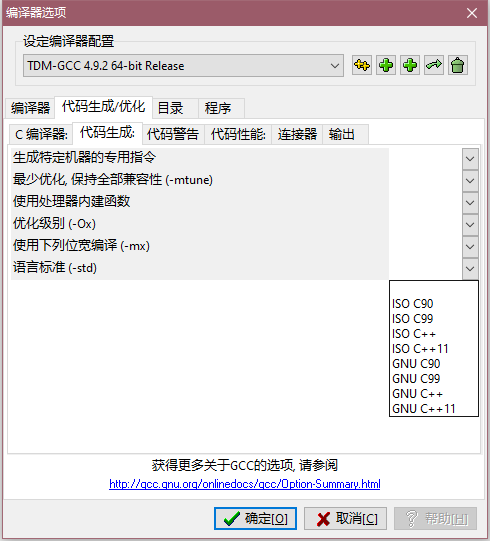
Changing the Language Standard
Use new language features or try to compile code under an old standard.
Select the "Language standard (-std)" option under the "Code Generation" sub-tab.
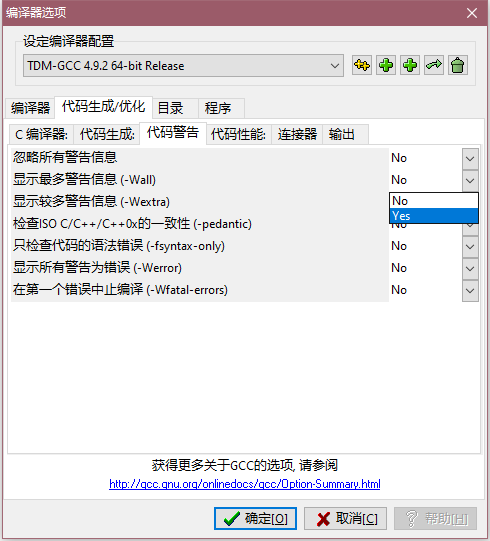
Displaying the Maximum Number of Warnings
A small assistant for finding errors.
Select the "Show the most warning messages (-Wall)" option under the "Code Warnings" sub-tab.
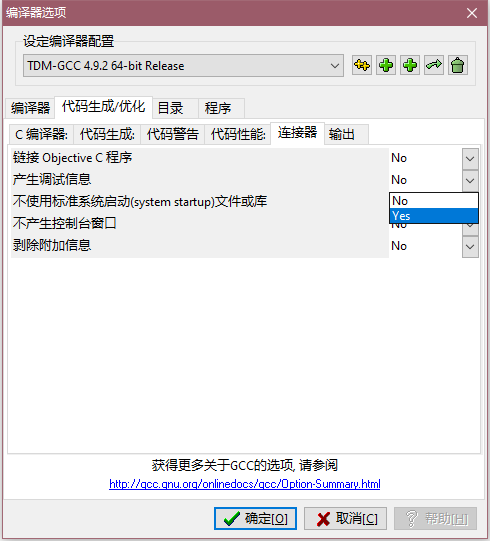
Generating Debug Information
This feature needs to be enabled when the message "The project has no debugging information. Do you want to open the project debugging options and rebuild it?" is displayed, clicking it causes a crash, or you want to use debugging functions.
Select the "Generate debugging information" option under the "Linker" sub-tab.
Compilation Tricks
Click Tools -> Compiler Options, then select the "Compiler" tab. Several common tricks are introduced below.
Increasing the Stack Size
Prevent situations such as DFS overflowing the system stack.
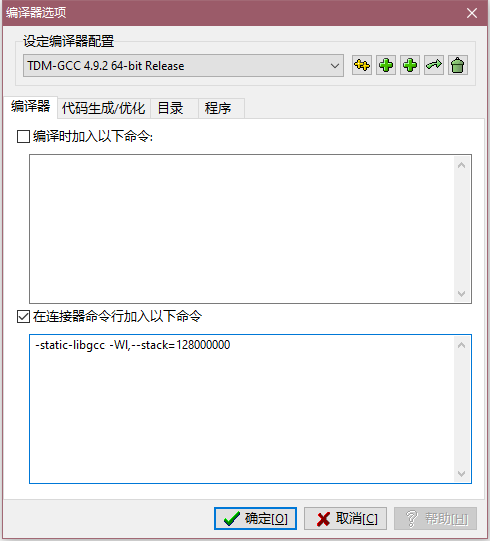
Add the command -Wl,--stack=128000000 under "Add the following commands to the linker command line".
This command increases the stack to approximately 128 MB; increase it as needed.
Defining Macros
Convenient for using file input/output in local testing or other purposes.
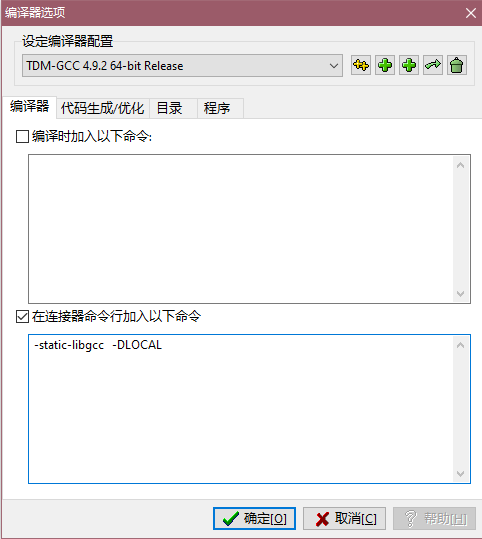
Add the command -D[String] under "Add the following commands to the linker command line".
Replace [String] with the macro name you need.
As shown in the figure, after enabling the compilation option, the following code can read data from the test.in file and output it to the test.out file.
#ifdef LOCAL
freopen("test.in", "r", stdin);
freopen("test.out", "w", stdout);
#endif
Code Formatting
Click Astyle-> Format Current File or press Ctrl+Shift+A to format the code.

Beautification
Fonts
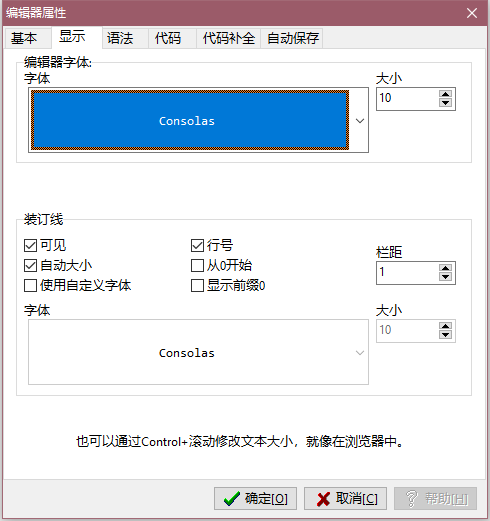
Click Tools -> Editor Options, then select the "Display" tab.
Themes
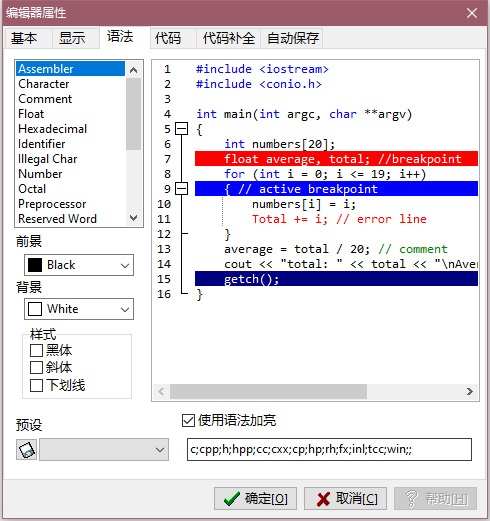
Click Tools -> Editor Options, then select the "Syntax" tab. You can use a preset theme or adjust it yourself.
References
Footnotes
-
The project's source code is hosted on GitHub and SourceForge. ↩
-
The project's official website is Red Panda C++, and its source code is hosted on Github ↩